Item Planning Parameters
Master the Item Card Planning tab — reordering policies, safety stock, order modifiers, and how the planning engine calculates supply.
Learning Objectives
- Configure Fixed Reorder Qty, Maximum Qty, Order, and Lot-for-Lot policies
- Set safety stock, lead time, and order modifiers
- Run the planning worksheet and interpret supply suggestions
Overview
The Planning tab on the Item Card defines how Business Central decides when and how much to replenish.
- Replenishment = Where supply comes from (Purchase, Production, etc.)
- Planning = How the system calculates supply
Think of it as: "When do I need more, and how much should I get?"
This setup drives the Requisition Worksheet, Planning Worksheet, and automatic supply suggestions.
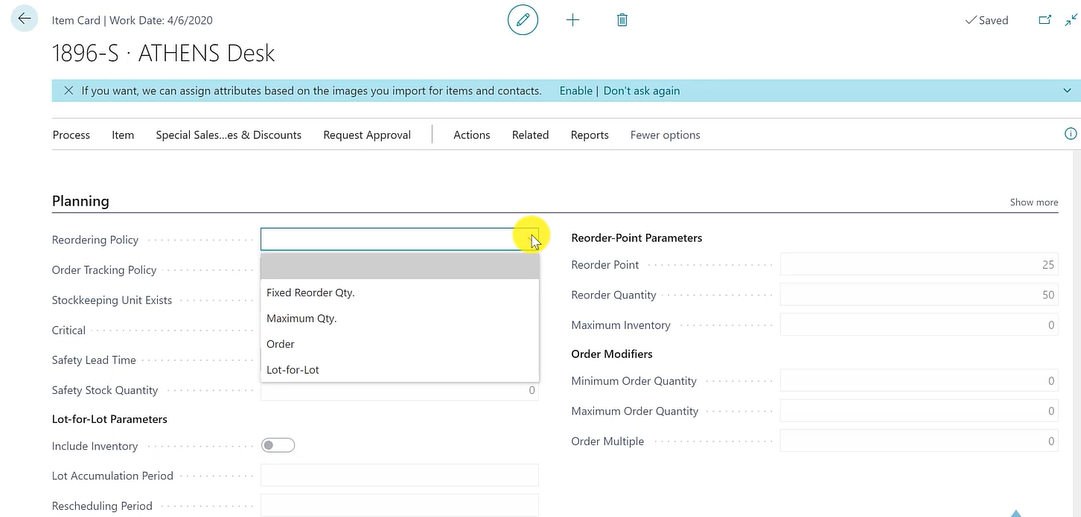
Reordering Policy — The Most Important Field
The Reordering Policy defines the logic used by the planning engine.
Fixed Reorder Quantity
When inventory drops below the Reorder Point, the system suggests a fixed quantity.
Example: Reorder Point = 10, Reorder Quantity = 50, Current Stock = 9 → Suggest: Order 50
Use for: Simple replenishment, stable consumption. Limitation: Can lead to overstock.
Maximum Quantity
When inventory drops below the Reorder Point, replenish up to a maximum level.
Example: Reorder Point = 20, Maximum = 100, Current Stock = 30 → Suggest: Order 70
Use for: Retail and warehouse scenarios maintaining optimal stock levels.
Order (Demand-Driven)
Each demand (Sales Order, etc.) creates its own supply.
Example: Sales Order = 7 units → Suggest: Order/Produce 7
Use for: Custom items, Make-to-Order scenarios. Limitation: Many small orders.
Lot-for-Lot
Groups demand over a time period and suggests supply matching total demand.
Example: Day 1 demand = 3, Day 2 demand = 4 → Suggest: Order 7 (single order)
Use for: Manufacturing, optimized planning.
Order vs Lot-for-Lot
| Policy | Behavior |
|---|---|
| Order | One supply per demand |
| Lot-for-Lot | Groups multiple demands |
Order Modifiers
| Parameter | Purpose |
|---|---|
| Minimum Order Quantity | Ensures orders are not too small |
| Maximum Order Quantity | Caps order size |
| Order Multiple | Forces quantities to multiples (e.g., 10, 20, 30…) |
Safety Parameters
- Safety Stock Quantity — Buffer against demand variability and delays
- Safety Lead Time — Extra time added to replenishment lead time
Planning in Practice
Scenario — Sales Order for 7 units:
| Policy | Suggestion |
|---|---|
| Order | 7 units |
| Fixed Reorder Qty | Fixed amount (e.g., 50) |
| Lot-for-Lot | 7 (or grouped demand) |
| Maximum Qty | Up to max level |
Pro Tip
Test this flow: Create Sales Order → Run Planning Worksheet → Review Suggestions → Execute Orders. This is how planning works in real projects and MB-800 interviews.
Relationship with Replenishment
| Setup | Role |
|---|---|
| Replenishment | Defines source (Purchase / Production / etc.) |
| Planning | Defines quantity and timing |
Example: Replenishment = Production + Planning = Lot-for-Lot → System creates Production Orders based on grouped demand.
Best Practices
- Use Order / Lot-for-Lot for demand-driven environments (projects, custom production)
- Use Fixed / Maximum for stable consumption (retail, stock items)